Radio studio: audio, live video and guests
How to broadcast radio and live video from your browser
Set up audio and music, turn on the presenter’s video or invite a guest. A guide for stations created on Zvukradio, from checking devices to ending the broadcast.
01Audio and live video
How do I start broadcasting?
Sign in, open My stations and enter the studio of a station created on Zvukradio. Wait for the connection, then select music or enable the microphone in the broadcast controls. Check the audio meter and listen on the public station page in another tab. Use headphones to avoid feedback.
How do I enable the microphone?
Open the HTTPS site and press the microphone control in the studio. Allow microphone access in your browser. If there is no sound, check the selected device, site permissions and system input volume. Reload the studio after changing permissions. Keep the studio tab open while using the microphone.
How do I take an on-air call?
Calls are linked to the station chat. A listener requests a call and the presenter accepts or rejects it in the studio. Availability depends on station settings and participant permissions. The caller must allow browser microphone access. Accept only when ready to put the caller on air, then use the call control to end it.
How do I connect desktop broadcasting software?
Open your station’s Stream section. Copy its server, port, mount point, username and password into the broadcasting application. The current connection requires SSL/TLS on port 8443, with MP3 at 128 kbps stereo. Do not use another station’s credentials. Check the public broadcast after connecting.
How do I broadcast computer audio?
The microphone button does not automatically capture all computer sound. Use the station audio library for music. For other applications, use broadcasting software or an audio input configured to appear as a microphone in the browser. Capture options depend on your operating system and browser.
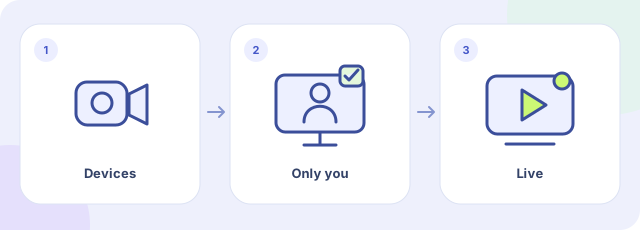 How do I start the presenter’s video broadcast?
- Choose devices
- Check the private preview
- Start the video broadcast
Open My stations, your created station’s studio and the Management tab. In Live video, open Camera and microphone, select the devices and click Check camera and audio. Allow access in the browser and check the private preview. Viewers cannot see you during this check. Start video broadcast makes the video public on the station page. Use headphones and check the viewer’s page too. This control is for stations created on Zvukradio, not external streams added to the catalogue.
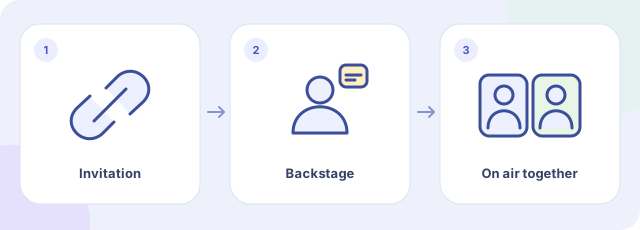 How do I invite a guest and bring them on air?
- Send the private link
- Talk backstage
- Bring the guest on air
After checking your devices, choose Invite a guest and share the private link with that person. The guest checks their camera and microphone, then joins you backstage. Joining does not put them in the public broadcast: the presenter chooses Bring guest on air separately. You can return the guest backstage or disable their audio or video. One guest can join the current session; the invitation lasts eight hours. Requesting the link again returns the same invitation. Revoking it disconnects the guest and invalidates the old link. Ending the video broadcast closes the session.
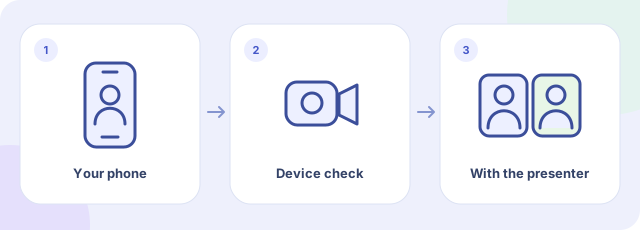 How can an invited guest join from a phone?
- Open the invitation
- Check camera and audio
- Join the presenter
Open the private link in the phone’s browser, allow camera and microphone access, check the devices and choose Join the presenter. The guest link does not require registration. Use headphones and a stable connection, and keep the page open during the conversation. Before the programme, check with the presenter that both people receive the picture and voice. Device access and compatibility depend on the phone and browser; background operation is not guaranteed.
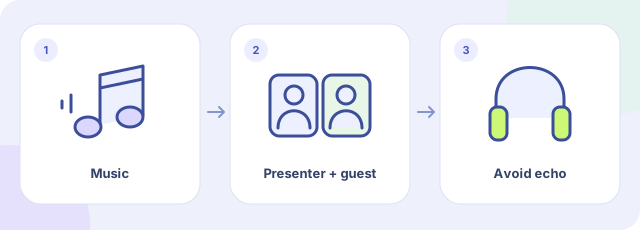 What audio goes into the video, and what does the guest hear?
- Prepare the music
- Check both voices
- Use headphones
The public video carries the station’s combined audio: music from the built-in broadcaster, the presenter’s voice and the voice of a guest who is on air. The guest receives the presenter and station audio without their own voice being returned. The presenter’s camera, microphone and the guest’s audio and picture have separate controls. Use headphones, because speakers near a microphone can cause echo. Check the final mix as a listener; your monitoring volume and the level sent on air serve different purposes.
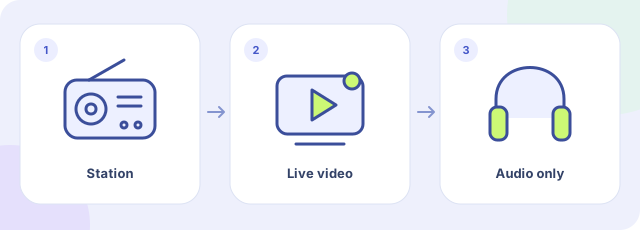 How do viewers watch the video and return to radio?
- Open the station
- Choose Watch live
- Or switch to Audio only
Open the station’s public page. When the presenter starts live video, Watch live becomes available. Viewers do not need a camera or microphone. Audio only returns to the regular radio player. Radio and video can have different delays, so do not listen to both at once. If no video broadcast is active, the station page continues to offer regular radio. A station’s presence in the catalogue does not mean it broadcasts video around the clock.
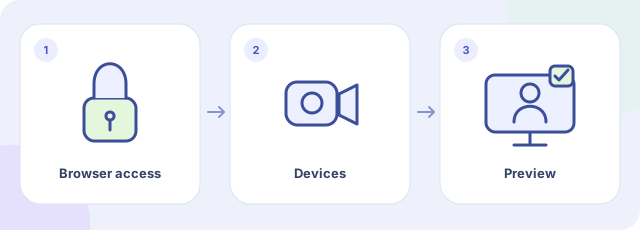 What should I check if the camera or voice is missing?
- Check browser permissions
- Select camera and microphone
- Check the preview again
Check that your browser allows camera and microphone access for zvukradio.com, that the right devices are selected and that another application is not using them. If the permission request still awaits an answer, the preview cannot appear and video cannot start. After changing devices, close the preview and run the check again. Check mute controls and the chosen audio source on your computer or phone. If you see video but cannot hear the presenter, use any playback control shown and check the volume. Turn off the broadcast with its separate end button: disabling the camera does not end the session.
02Music and recordings
How do I find music and build a playlist?
Open Music on the site or search the studio audio library. Search by title or artist; the site catalogue also has a genre filter. Studio search can use the shared catalogue, user music or your stations. Select tracks and create a playlist or add them to an existing one. Other users’ private files and broadcast recordings are excluded from public search.
How do I use a shared playlist on my station?
Open a playlist in Music and choose the action to send it to the broadcaster. Select a station you can manage, then open its studio and select the added playlist in the audio library. Copying a playlist does not start broadcasting; start playback or automatic broadcasting separately.
How do I enable automatic broadcasting?
Prepare a non-empty station playlist and select it for AutoDJ in the studio. Start automatic broadcasting and check the sound on the public page. It runs on the server and can continue after you close the browser. Stop it using the AutoDJ controls. AutoDJ is unavailable on the free plan; see pricing for paid-plan features.
How do I record a broadcast and find the file?
Start recording from the broadcaster controls during your broadcast. After stopping, wait for the file-saving and processing notification. Find the files in Recordings; access is restricted to the station owner and presenters. If processing continues, wait for the list to update. Recordings are not added automatically to the public music catalogue.
03Station management
Should I create a station or add an existing radio?
In My stations, create a station to broadcast through the Zvukradio studio, take calls and use AutoDJ when included in your plan. Adding a station is for an existing external stream. Added streams and stations created on the service are different station types.
How do I edit the name, description and genres?
Open the station settings from My stations, then the Basic tab. Edit the name, description, genres, country or language and save. These settings belong to the selected station; check its name before saving.
How do I give a presenter access?
The owner manages presenters in the station’s basic settings, including applications and team membership. A presenter signs in with their own account and opens a studio they can access. Do not share the owner’s account password.
Why is my station missing from the catalogue?
Check that the station is not hidden in its basic settings and is actually sending audio. Stations created on Zvukradio appear in the public catalogue only while a broadcast is available. Allow time for the status to update after starting. Changing visibility does not start a broadcast.
How do I change the logo, background and chat theme?
Open Design in station settings. Upload a logo or background and choose image sizing, position and chat theme. The background is visible immediately in settings, with separate page and chat previews. Images are saved on upload; save colors, positioning and theme with Save appearance. For an external player, use the Website widget tab.
Need more help?
Contact us: info@eritcom.com
More answers →